Find The Right Label Size For Your Project With These Printable Label Tools

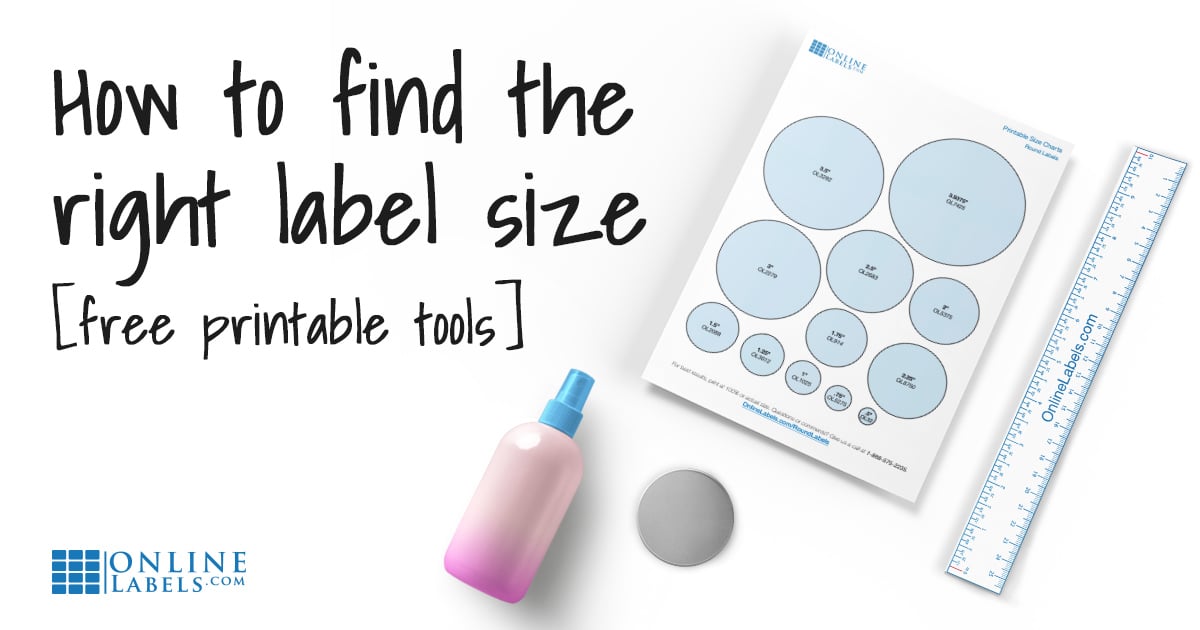
"How do I find the right label size" is a question we get asked pretty regularly. Whether it's difficulty measuring rounded bottles or too many label sizes to choose from, we know it's a challenging hurdle to buying labels.
To help solve this widespread problem, we developed the following free printable label tools. They're sure to help you get the right measurements for labels that fit.
Simply click on the files below to open them in a new window. Click the download button and open them in Adobe Acrobat Reader. Then, print them on standard printer paper and grab your scissors!
Be sure to check your printer settings to ensure your documents print correctly. In the printer dialog box that opens after clicking print, look under "Page Scaling," and select "Actual Size" or "None." Next, confirm that "Auto-Rotate and Center" is unchecked.
Printable Ruler
Our printable ruler is 10 inches in length to fit on a standard 8.5" x 11" piece of paper. Because it's flexible, it can bend and wrap to match any shape container.
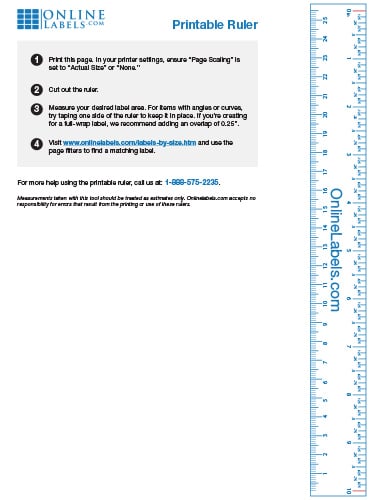
How To Use The Printable Ruler
- Cut out your ruler using scissors.
- Confirm your ruler increments are accurate. (Credit cards have standard dimensions so you can use one from your wallet to check. It should measure 3.37 inches wide or 8.6 centimeters.)
- Measure your item. Line up the red line with your starting point and use your thumb or finger to hold the end in place before wrapping the ruler around the rest of your container. For items with angles, you may need to tape the ruler to your container to hold it in place while you wrap the rest. If you want a full-wrap label for your product, we recommend adding an extra 1/4 inch to your width dimension.
- Choose a label size. Visit Shop by Size, click "Filter by exact size" in the left sidebar, and enter your dimensions. If you're looking for a range, use the sliders to narrow your results.
That's it! Select the label configuration that's best for your product, and you're well on your way.
Can't find the label size you were looking for? We offer custom size labels. See if other customers have created your size for their needs or create your own.
Label Size Guides
If you know what shape you're looking for but can't narrow down the right size, use the label size guides below. We've compiled the most popular sizes for each shape and put them into these handy documents.
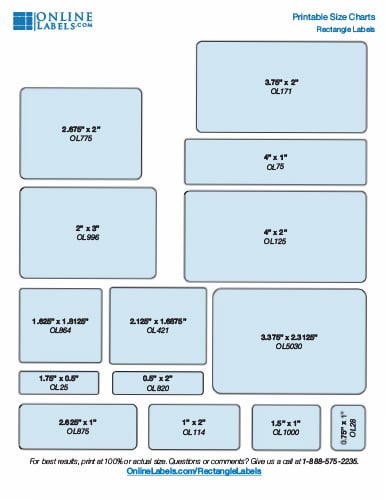
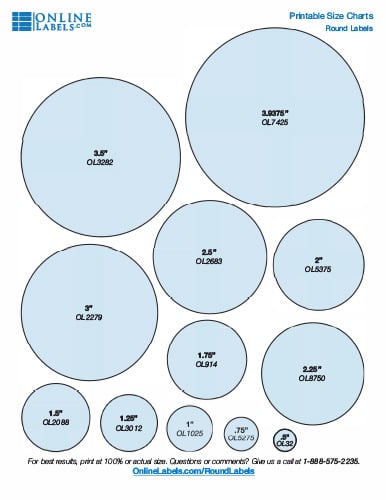
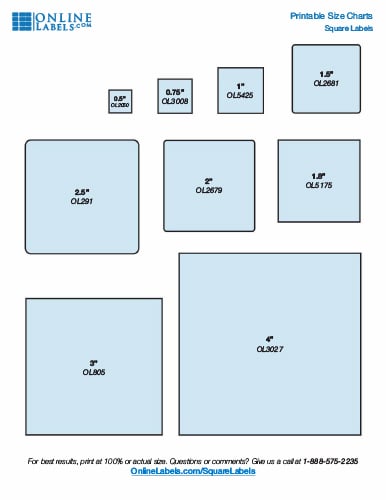
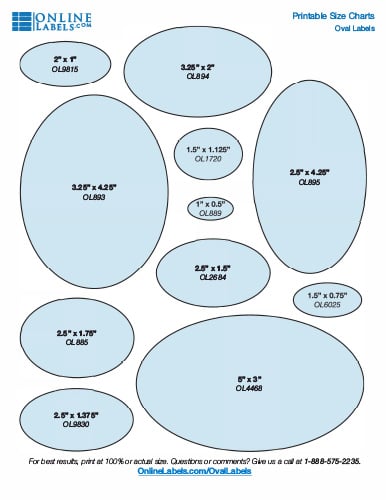
How To Use Our Label Size Guides
- Cut out whichever sizes you're considering.
- Test them against your application or container.
- Type the corresponding product number (OL followed by three of four digits, example: OL875) into the search bar of our website.
- Select the material that's best for your product and place your order.
Printable Label Tool Alternatives
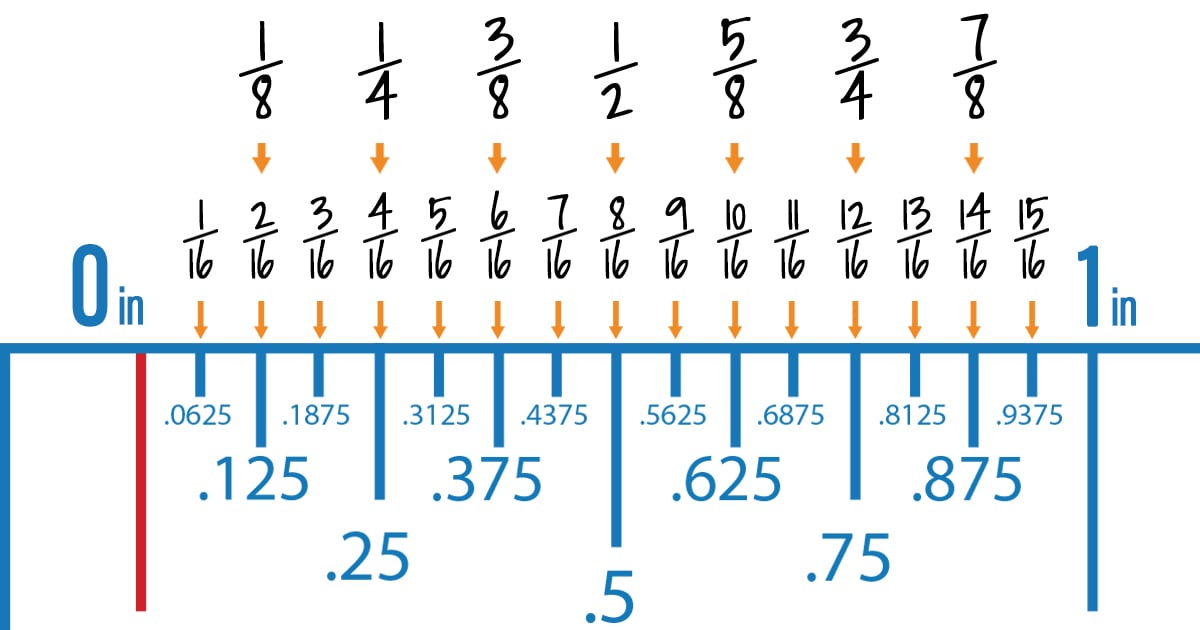
Use A Standard Ruler
We love our printable ruler not only because it bends, but also because it converts the numbers to decimals for you. But if you're using a bendaable ruler already, here's how to convert the notches or fractions to decimals so you can determine the best label size for your project.
Choosing the right label size is easy when you have the right tools. Grab the printable ruler or label size guides today!
For a breakdown of all of our shopping tools, check out this article. You can also browse labels compatible with popular container types.
While you wait for your labels to arrive, get started designing them! Every OnlineLabels.com purchase includes access to Maestro Label Designer, online design software specifically for label design and printing. Check your order confirmation email for your unique activation code.
Once your design is ready and your labels have arrived, all that's left is to print and apply. Here are some helpful tips to help you through the process:
- Download your design from Maestro Label Designer and it in Adobe Acrobat Reader.
- Clean your hands and containers.
- Stabilize your container in your lap or on the table.
- Peel the label from the sheet (not the other way around).
- Stick the middle of your label first, smoothing out toward the edges.
Discover more label printing advice or label application tips.
Measurements taken with these tools must be treated as estimates only. Because of the nature of paper, the documents may expand or shrink during and after the printing process.