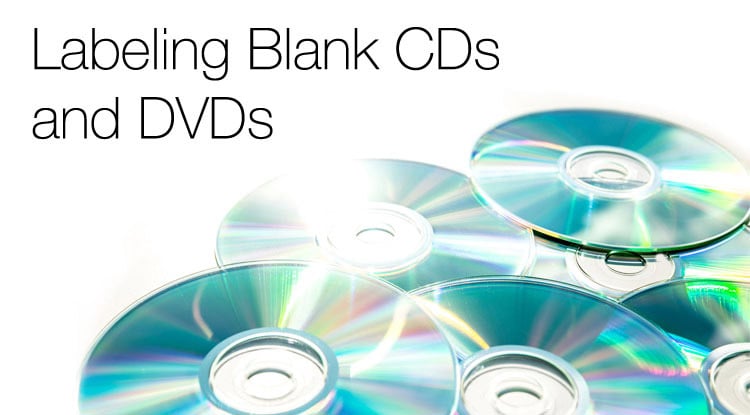
Labeling Blank CDs and DVDs

Types of CD / DVD Labeling
While CDs and DVDs are constructed differently, many of the same rules apply to labeling them. It is important to note, though, that DVDs are more protected and therefore less susceptible to damage. But less susceptible is not immune. Here are three of the top options for labeling your CDs and DVDs.
Labels
What most people don't know is that the top is the side of the CD / DVD with all the data, so it's more imperative to protect the top than the bottom.
One of the main benefits of using labels to distinguish and arrange CDs and DVDs is that added barrier it creates between the CD or DVD and the hazards of storage and use, i.e. scratches, sunlight, and dust. Any blemishes on the disc could cause failure of the CD or DVD and a loss of the saved data. CD labels and DVD labels prevent scratches to the most important part of your disc.
Another great reason to use labels is the plethora of materials you can use to make your label shine — both literally and figuratively. Our blank CD / DVD labels come in a wide variety of printable finishes and materials.
Depending on the type of data you're saving, you can select from white or clear. We also provide fluorescent colors, true colors, pastel colors, and gold and silver foil materials. Weatherproof labels are also available for extra protection.
CD and DVD labels are ideal for small volume projects. They are made to be printed at home using your standard inkjet or laser printer and then applied by hand or by a label applicator.
Screen Printing
Silkscreen printers work by printing directly on the CD or DVD itself. A screen of your design is made, and then each individual color of ink is added through a mesh fabric forming your CD or DVD image. Silkscreen printing also protects the top side of the dusk from abrasions and dust granules, much as a label does. Some printers are capable of producing metallics as well.
If you're printing large quantities of CDs or DVDs, screen printing may be an attractive option. For those doing CD or DVD labeling at home, however, this can be a costly and time-consuming venture.
Permanent Markers
If you're looking for a fast process without any design, permanent ink markers are a feasible, low-cost, and easy-to-accomplish option. Be careful not to use a ballpoint pen or sharp writing tool.
They are just as likely to scratch the surface and harm your data as anything else. We recommend using a felt tip if you're going to pursue this route, and possibly be as cautious as to use acid free markers.
Another thing to consider when using a permanent marker is where you write. The inner plastic area is your best bet. If you only used a small portion of the disc's data, you can write on the unused rim. You can tell how much space of a disc you've used by looking for the darker areas of the CD — they are the only portion of the CD with information.
Personalizing blank CD and DVD labels
If you decide to print CD or DVD labels at home, Maestro Label Designer will allow you to design within the specifications of the label size and shape you choose. Add text, shapes, and images to make your CD or DVD label unique. When you feel your design is perfect, you can save it as a PDF or load your labels into your printer and print immediately. Our blank CD and DVD labels will accept laser or inkjet printing.
OnlineLabels.com carries a variety of CD and DVD labels in all the popular configurations such as Neato®, Memorex®, business card CDs, and mini CDs among many others. View our CD labels or DVD labels to find the best shape and size for your home or work collection.
Please test the methods listed above on a CD or DVD with noncritical information. The content in this article is meant to be used as a guide, not as an authoritative resource on best practices for CDs and DVDs.