Find the image you want to save, and press the "Print Screen" button on your keyboard. (It's usually in the top right corner of your keyboard)

Once Paint is open, go to Edit > Paste (Ctrl + V) to add your screenshot to Paint and use the scroll bars to find the image you want to save.

Small Squares will appear around the edges of the canvas. Move your mouse over the bottom right square until you see diagonal arrows which allow you to crop the image area.

Click and drag the diagonal arrows until you are at the bottom right corner of the image you want to save.

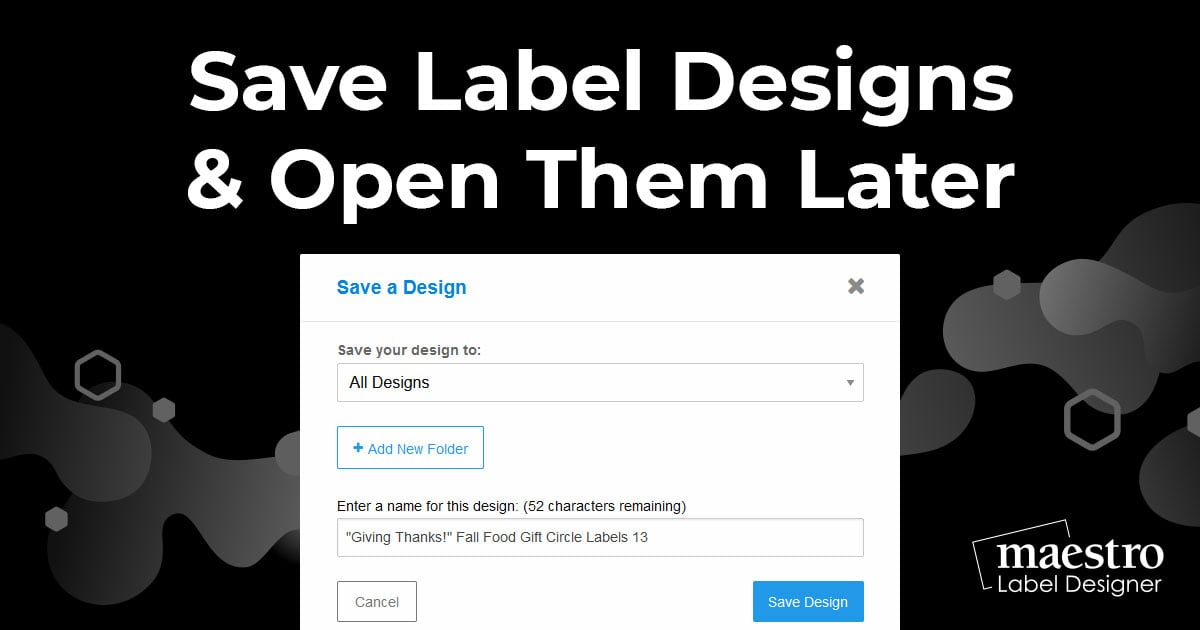
On the left side, choose a folder to put your image in. Then select JPEG in the "Save as type" field.

In Maestro Label Designer®, open the design that you want to add the image to. Then click the "Add Images" button.

Navigate to the folder where you saved your image. Click on the image you saved, and click the "Open" button.

| Customer Support | Shopping | Miscellaneous | Company Information | |
|
|
Toll Free: 1-888-575-2235 Online Labels, Inc. |
![]() |
![]() |
|
© 2012 Copyright Online Labels, Inc. All Rights Reserved. Privacy Policy | Terms of Service
|