OnlineLabels® Sticker Paper Cut Settings for Silhouette Cameo 4

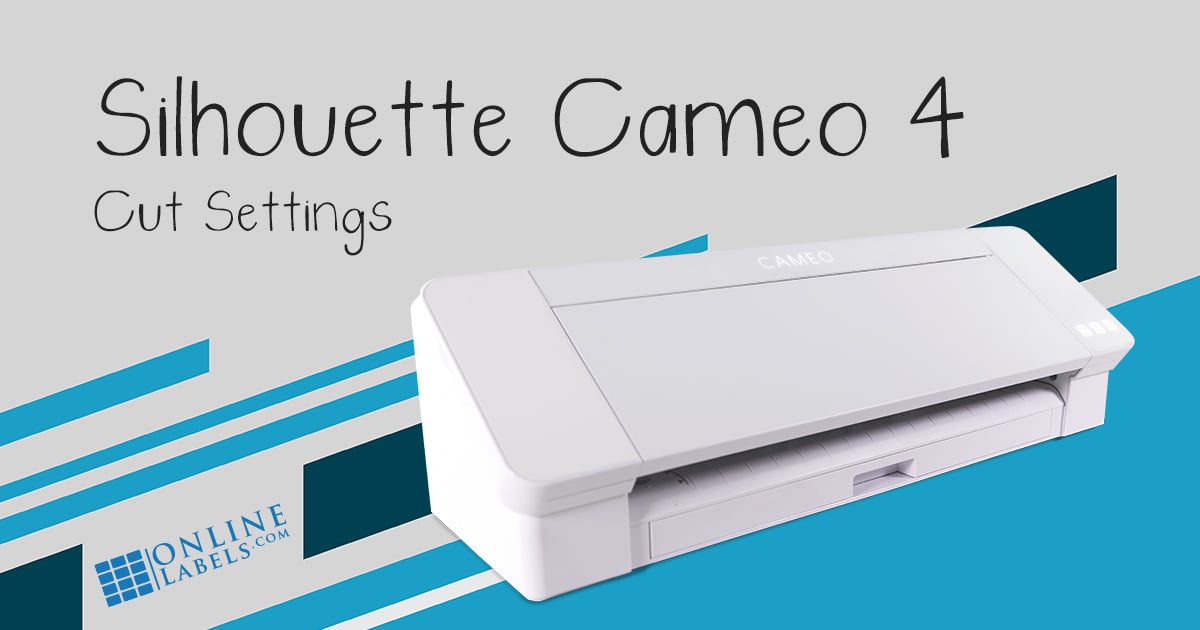
Our expert crafters have hand-tested the Silhouette Cameo® 4 with OnlineLabels sticker paper to bring you the exact cut settings for each material. Continue to the charts below to find the cut settings for kiss cut and full cut stickers using your AutoBlade and ratchet blade.
AutoBlade 2 Settings
| Material | Product Code | Blade | Kiss Cut Force | Full Cut Force | Full Cut Passes |
|---|---|---|---|---|---|
| Standard White Matte | OL177WX | 3 | 4 | 16 | 2 |
| Removable White Matte | OL177WR | 3 | 4 | 16 | 2 |
| Aggressive White Matte | OL177AT | 3 | 8 | 20 | 2 |
| 100% Recycled White | OL177RX | 3 | 8 | 20 | 2 |
| White Gloss Inkjet | OL177WG | 3 | 12 | 24 | 2 |
| White Gloss Laser | OL177WS | 3 | 8 | 24 | 2 |
| Weatherproof Matte Inkjet | OL177WJ | 3 | 12 | 24 | 2 |
| Weatherproof Polyester Laser | OL177LP | 3 | 4 | 20 | 2 |
| Weatherproof Gloss Inkjet | OL177WI | 3 | 20 | 28 | 2 |
| Blockout for Laser | OL177BT | 3 | 8 | 28 | 2 |
| Clear Matte Inkjet | OL177CJ | 4 | 16 | 28 | 3 |
| Clear Matte Laser | OL177CX | 3 | 12 | 28 | 2 |
| Clear Gloss Inkjet | OL177CK | 4 | 16 | 24 | 2 |
| Clear Gloss Laser | OL177CL | 4 | 12 | 28 | 2 |
| Silver Foil Laser | OL177SF | 4 | 20 | 28 | 2 |
| Gold Foil Laser | OL177GF | 3 | 16 | 28 | 3 |
| Silver Foil Inkjet | OL177SI | 4 | 24 | 32 | 2 |
| Gold Foil Inkjet | OL177GI | 5 | 24 | 32 | 2 |
| Weatherproof Silver Polyester Laser | OL177SP | 3 | 8 | 24 | 2 |
| Brown Kraft | OL177BK | 3 | 12 | 24 | 2 |
| Fluorescent Red | OL177FR | 3 | 8 | 24 | 2 |
| Fluorescent Yellow | OL177FY | 3 | 8 | 24 | 2 |
| Fluorescent Green | OL177FG | 3 | 8 | 24 | 2 |
| Fluorescent Pink | OL177FP | 3 | 8 | 24 | 2 |
| Fluorescent Orange | OL177FO | 3 | 8 | 24 | 2 |
| Pastel Pink | OL177PX | 3 | 8 | 24 | 2 |
| Pastel Yellow | OL177YX | 3 | 8 | 24 | 2 |
| Pastel Blue | OL177BX | 3 | 8 | 24 | 2 |
| Pastel Green | OL177GX | 3 | 8 | 24 | 2 |
| True Gray | OL177TE | 3 | 8 | 24 | 2 |
| True Yellow | OL177TY | 3 | 8 | 24 | 2 |
| True Green | OL177TG | 3 | 8 | 24 | 2 |
| True Red | OL177TR | 3 | 8 | 24 | 2 |
| True Blue | OL177TB | 3 | 8 | 24 | 2 |
| True Purple | OL177TP | 3 | 8 | 24 | 2 |
| Light Tan | OL177TC | 3 | 8 | 24 | 2 |
| Cardstock Paper | OL267KW | 4 | N/A | 20 | 2 |
| Magnetic White Gloss | OL403MG | 10 | N/A | 33 | 2 |
| Void Silver Polyester Laser | OL177VS | 3 | 12 | 24 | 2 |
| Chalkboard Labels | OL3286CB | 10 | 33 | 33 | 7 |
| Weatherproof Vinyl Laser | OL3536LV | 5 | 12 | 32 | 3 |
Download Printable Cut Settings Chart
Ratchet Blade Settings
| Material | Product Code | Blade | Kiss Cut Force | Full Cut Force | Full Cut Passes |
|---|---|---|---|---|---|
| Standard White Matte | OL177WX | 2 | 3 | 16 | 2 |
| Removable White Matte | OL177WR | 3 | 4 | 16 | 2 |
| Aggressive White Matte | OL177AT | 2 | 5 | 11 | 2 |
| 100% Recycled White | OL177RX | 3 | 8 | 20 | 2 |
| White Gloss Inkjet | OL177WG | 3 | 12 | 24 | 2 |
| White Gloss Laser | OL177WS | 2 | 1 | 18 | 2 |
| Weatherproof Matte Inkjet | OL177WJ | 2 | 2 | 17 | 2 |
| Weatherproof Polyester Laser | OL177LP | 2 | 4 | 17 | 2 |
| Weatherproof Gloss Inkjet | OL177WI | 2 | 5 | 19 | 2 |
| Blockout for Laser | OL177BT | 2 | 4 | 15 | 2 |
| Clear Matte Inkjet | OL177CJ | 2 | 5 | 23 | 2 |
| Clear Matte Laser | OL177CX | 2 | 5 | 18 | 2 |
| Clear Gloss Inkjet | OL177CK | 2 | 5 | 18 | 2 |
| Clear Gloss Laser | OL177CL | 2 | 4 | 24 | 2 |
| Silver Foil Laser | OL177SF | 2 | 7 | 18 | 2 |
| Gold Foil Laser | OL177GF | 2 | 5 | 16 | 3 |
| Silver Foil Inkjet | OL177SI | 2 | 7 | 18 | 2 |
| Gold Foil Inkjet | OL177GI | 2 | 7 | 18 | 2 |
| Weatherproof Silver Polyester Laser | OL177SP | 2 | 3 | 14 | 2 |
| Brown Kraft | OL177BK | 2 | 7 | 20 | 2 |
| Fluorescent Red | OL177FR | 2 | 4 | 15 | 2 |
| Fluorescent Yellow | OL177FY | 2 | 4 | 15 | 2 |
| Fluorescent Green | OL177FG | 2 | 4 | 15 | 2 |
| Fluorescent Pink | OL177FP | 2 | 4 | 15 | 2 |
| Fluorescent Orange | OL177FO | 2 | 4 | 15 | 2 |
| Pastel Pink | OL177PX | 2 | 4 | 15 | 2 |
| Pastel Yellow | OL177YX | 2 | 4 | 15 | 2 |
| Pastel Blue | OL177BX | 2 | 4 | 15 | 2 |
| Pastel Green | OL177GX | 2 | 4 | 15 | 2 |
| True Gray | OL177TE | 2 | 4 | 15 | 2 |
| True Yellow | OL177TY | 2 | 4 | 15 | 2 |
| True Green | OL177TG | 2 | 4 | 15 | 2 |
| True Red | OL177TR | 2 | 4 | 15 | 2 |
| True Blue | OL177TB | 2 | 4 | 15 | 2 |
| True Purple | OL177TP | 2 | 4 | 15 | 2 |
| Light Tan | OL177TC | 2 | 4 | 15 | 2 |
| Cardstock Paper | OL267KW | 2 | N/A | 9 | 2 |
| Magnetic White Gloss | OL403MG | 4 | N/A | 30 | 2 |
| Void Silver Polyester Laser | OL177VS | 2 | 4 | 20 | 2 |
| Chalkboard Labels | OL3286CB | 2 | 12 | 30 | 2 |
| Weatherproof Vinyl Laser | OL3536LV | 3 | 4 | 32 | 3 |
Download Printable Cut Settings Chart
Silhouette Cameo 4 Unboxing
If you haven't purchased your Silhouette Cameo 4 yet, here's our unboxing video. See for yourself what's included and how it looks shiny and new.
Happy crafting! Love what you made? Share it with us in our Customer Ideas gallery or on social media.
Find sticker paper cut settings for other electronic cutting machine brands and models.
Cut settings may vary slightly when using a dull blade. OnlineLabels.com is not affiliated with Silhouette®. All copyrights belong to their respective owners.
Frequently Asked Questions
1. What should I do first before cutting my first batch of stickers with the Cameo 4?
Start with a fresh cutting mat, check that your blade is clean, and run a quick test cut using the material you’ll be using.
2. How can I organize my designs to cut multiple sticker sheets efficiently?
Group your sticker designs into a single Silhouette Studio file and utilize the Nesting feature to arrange them for minimal waste automatically. Label each design layer so you can easily switch between kiss-cut and full-cut lines.
3. How can I create custom cut settings for new paper types that aren’t listed?
Start with a similar preset and adjust blade depth and force in small increments. Once you find the perfect combination, save it as a custom setting under a descriptive name.
4. What’s the best way to save time when switching between kiss-cut and die-cut settings?
Create two layers in Silhouette Studio. One for kiss cuts and one for outer die cuts. Toggle each layer on or off depending on the stage of cutting. This eliminates the need to constantly adjust your settings.