5 Easy Ways to Save Money on Printing

We want to make your label buying and printing process as easy and affordable as possible. That's why we're happy to explain why OnlineLabels.com is better than retail and share the following printing guide with you. Happy labeling!
1. Use Your Printer's Economy Setting
Every time you print out a draft or test page, you use the same amount of ink as the final product. Using your printer's "Economy Mode" is ideal if you don't need earlier rounds to look exactly like the final. Economy mode uses less ink/toner, so your printed document will be slightly lighter than usual.
To do this, select the Preference Settings option in the print dialog box. Look for the Economy Mode setting (also known as Draft Mode, Toner Saver, Fast Mode), and select it accordingly.
2. Print Double-Sided or Two Pages to a Sheet
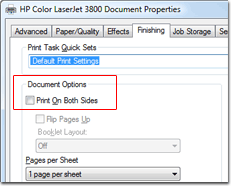
Granted, you can't do this with our label sheets, but it does work with our cardstock material. Now, what would normally take you two pages will take you one. The document will print Page One on the front and Page Two on the back. You'll have the option in your print dialog box on how you want the printer to align the second page - if you want the axis to be on the top or side. The traditional option is on the left.
For documents that don't require a full piece of paper, printing two pages on each sheet means the document is reduced in size and rotated 90 degrees. This prints the two pages on the same side of the paper, similar to how a booklet is printed. You can locate the option in Microsoft Word and Adobe Reader from the print menu. In other programs such as an internet browser, you can do this through the page layout or page scaling option.
3. Buy Discounted Printer Ink
We recommend this option when you print out documents containing text only. Instead of purchasing pricey, name-brand cartridges, you can opt to buy remanufactured cartridges which will often yield more prints! Please note, these cartridges may not have the same high print quality, which can affect labels that are printed with pictures or logos.
4. Print to PDF
You can save a lot of paper by simply not using it. Anytime there isn't an urgent need to print a document, save it as a PDF and create a digital filing system right on your computer's hard drive. This way, you're able to email it to the proper recipient or save it for easy access. Download Adobe Reader if you're interested in getting started.
5. Make Sure Your Printer Fits Your Needs
When purchasing a printer, keep in mind how you'll be using it. If you need a high-quality print only every so often, you may want to invest in an inkjet printer. A laser printer might be your best choice if you're printing frequently. To get all the information on choosing the right printer for you, visit our "Inkjet or Laser?" article.
Browse additional labeling support articles for great time and money saving tricks.
For one-on-one support, call our award-winning customer service team at 1-888-575-2235.