How To Create A Mail Merge Data List

To use the mail merge function in Maestro Label Designer, you'll first need to create a data list. Below, we walk you through the process in Excel and Notepad so you can make labels with customized information.
Making a Data List in Microsoft Excel
-
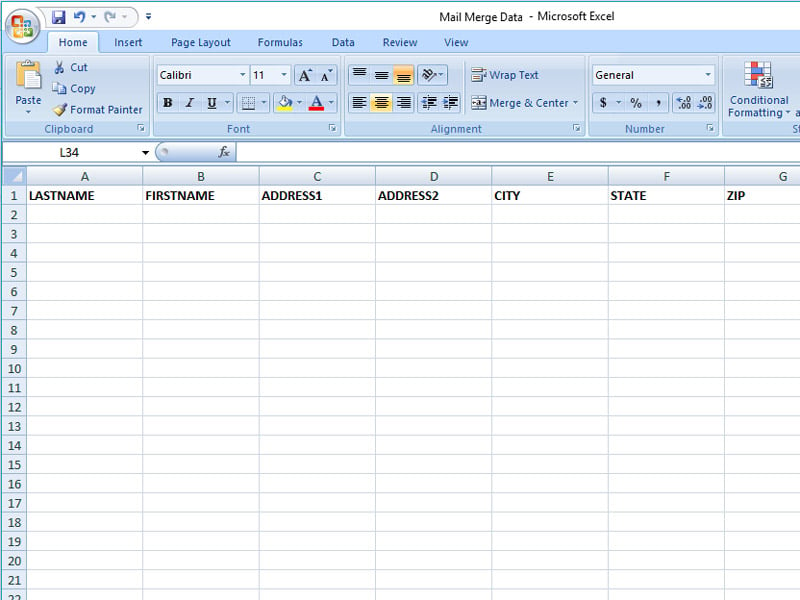
Add your column titles to the first row of your document.
Note: Avoid duplicates in column titles. Special characters will not transfer. If inserting dollar signs, make sure the cell is formatted as "Text."
-
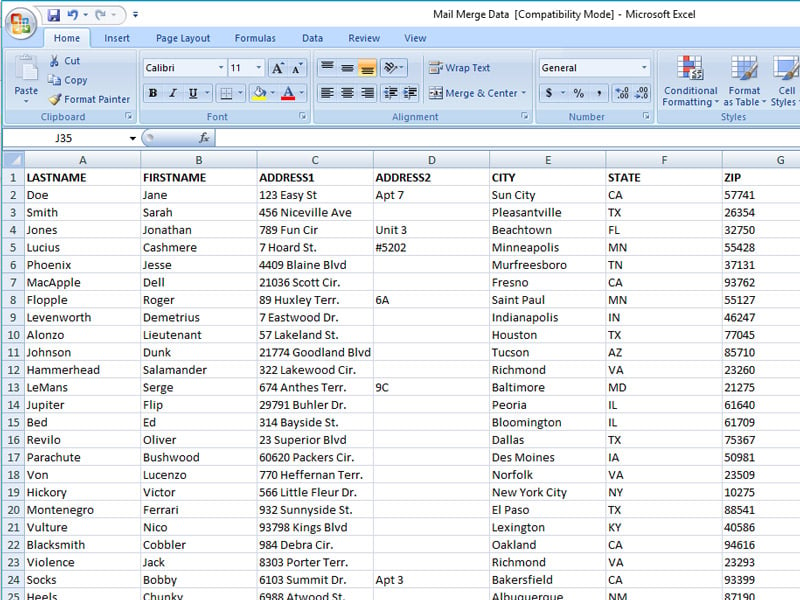
Enter your information in the appropriate columns.
-
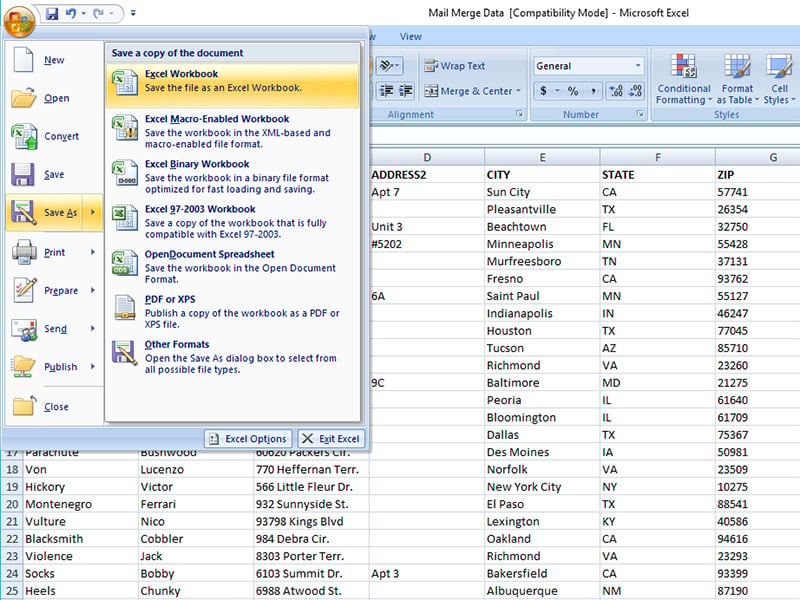
Open the menu in the top left-hand corner and click "Save As."
-
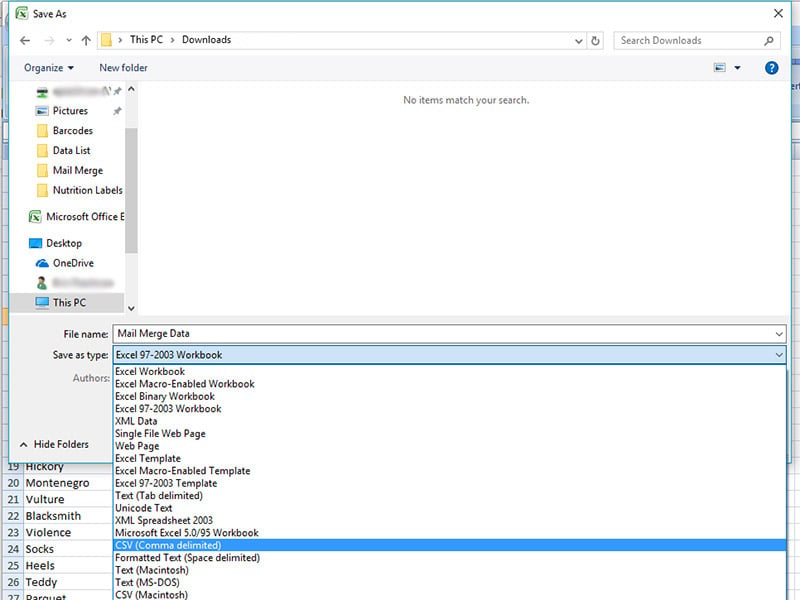
Name your file then click on the dropdown next to "Save as type." Maestro Label Designer will accept any of the following document types:
- CSV (Comma delimited)
- Text (Tab delimited)
- Excel Workbook
- Excel 97-2003 Workbook
Making a Data List in Notepad
-
Type your column titles in the first row of your document, separating each one with the "Tab" button on your keyboard.
Note: Use only one tab between columns and avoid special characters and duplicates titles.

-
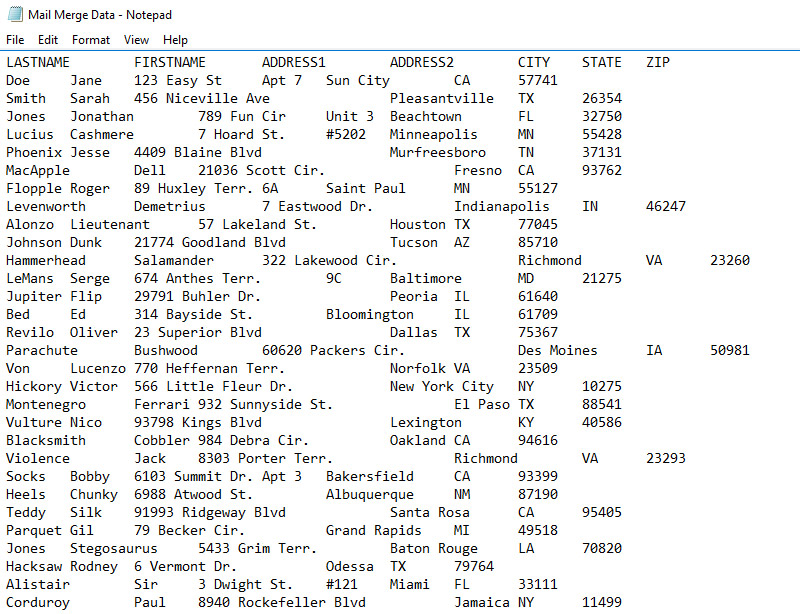
Enter your information following the same format.
Note: Your columns may not necessarily appear lined up. This is okay and will not affect your results.
-
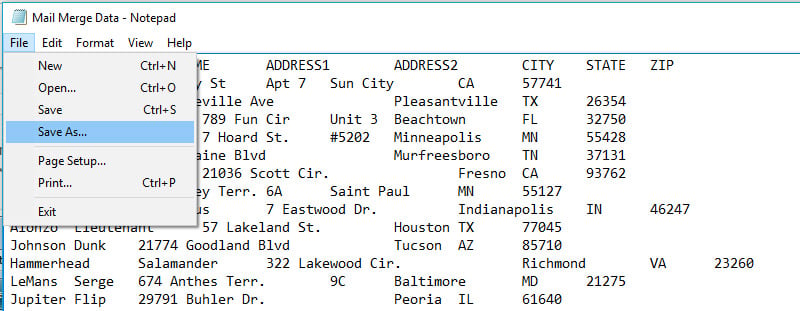
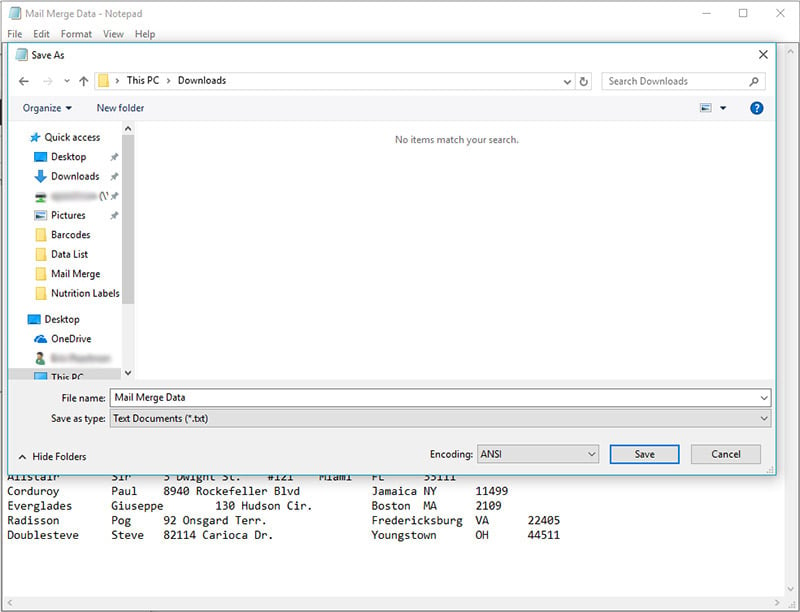
Click "File" in the top left-hand corner and click "Save As."
-
Name your file and select Text Documents (*.txt) as the "Save as type."
Once you have your file saved, launch Maestro Label Designer and continue to the mail merge tutorial.
For additional help creating a data list, customer service is available at 1-888-575-2235.