Design Interface

Updated
01/19/2022
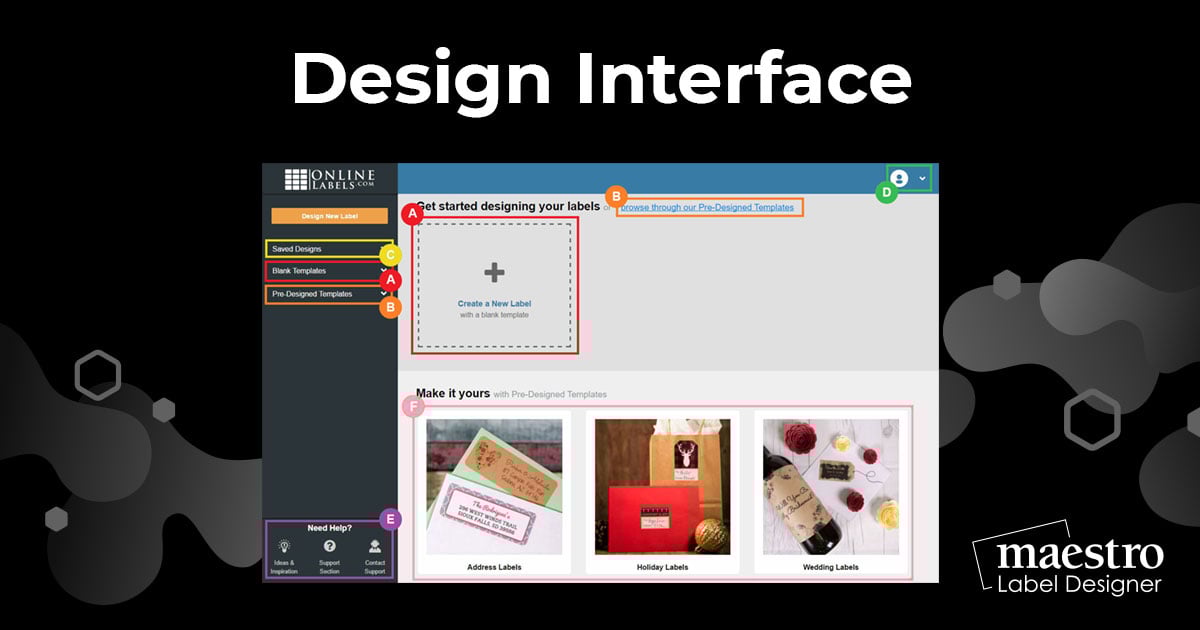
Learn where to find all the tools you need to make using Maestro Label Designer quick and easy!
Home Screen
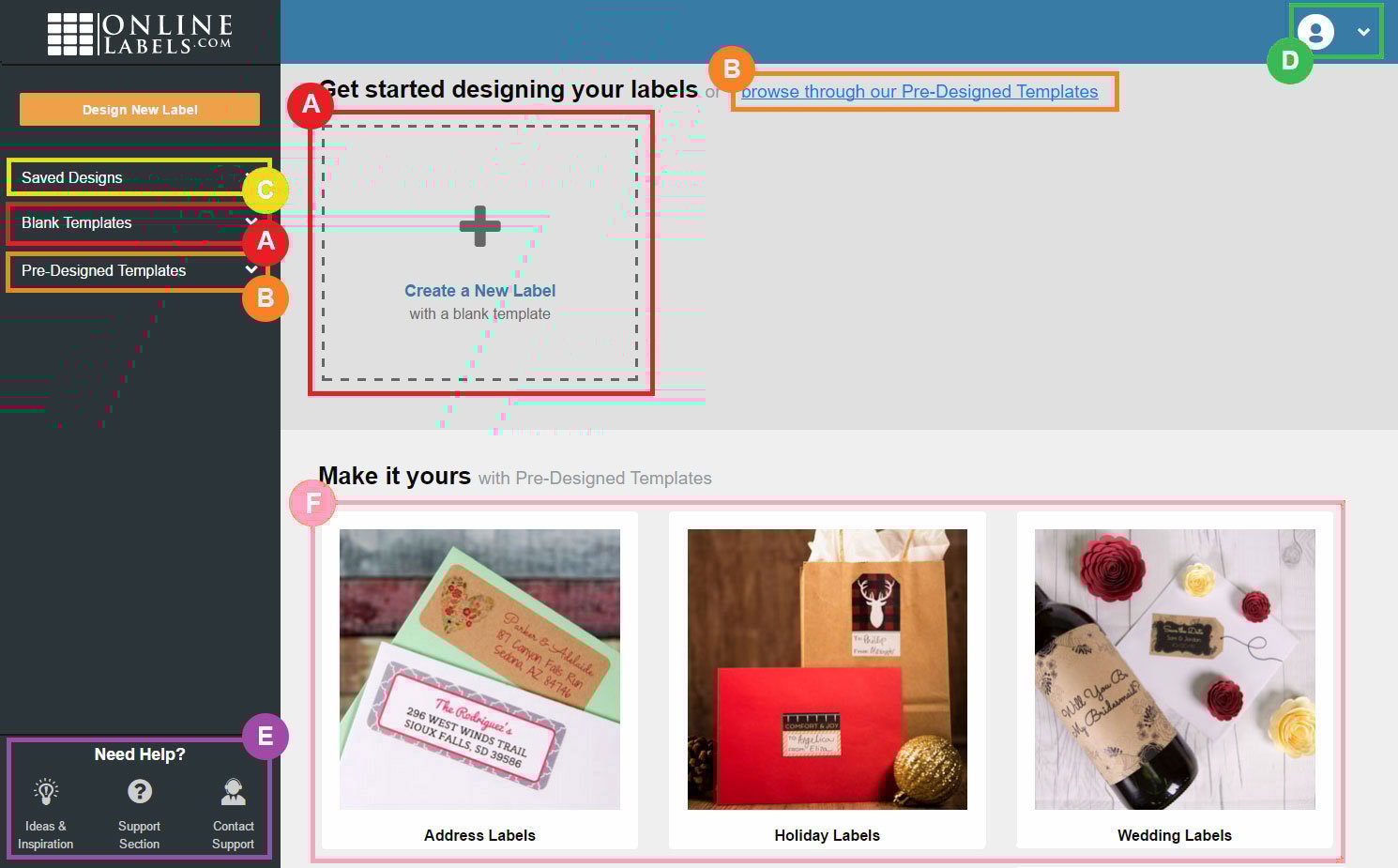

Blank Labels - what you click to open a blank template

Pre-Designed Templates - where you can go to search through pre-designed options

Saved Designs - how you find designs you've saved

Profile Icon - where you access your account and activation information or sign out

Support Tools - where you can find various forms of help

At-A-Glance - where you can easily access your most recent designs or search through popular pre-designed categories
Design Screen
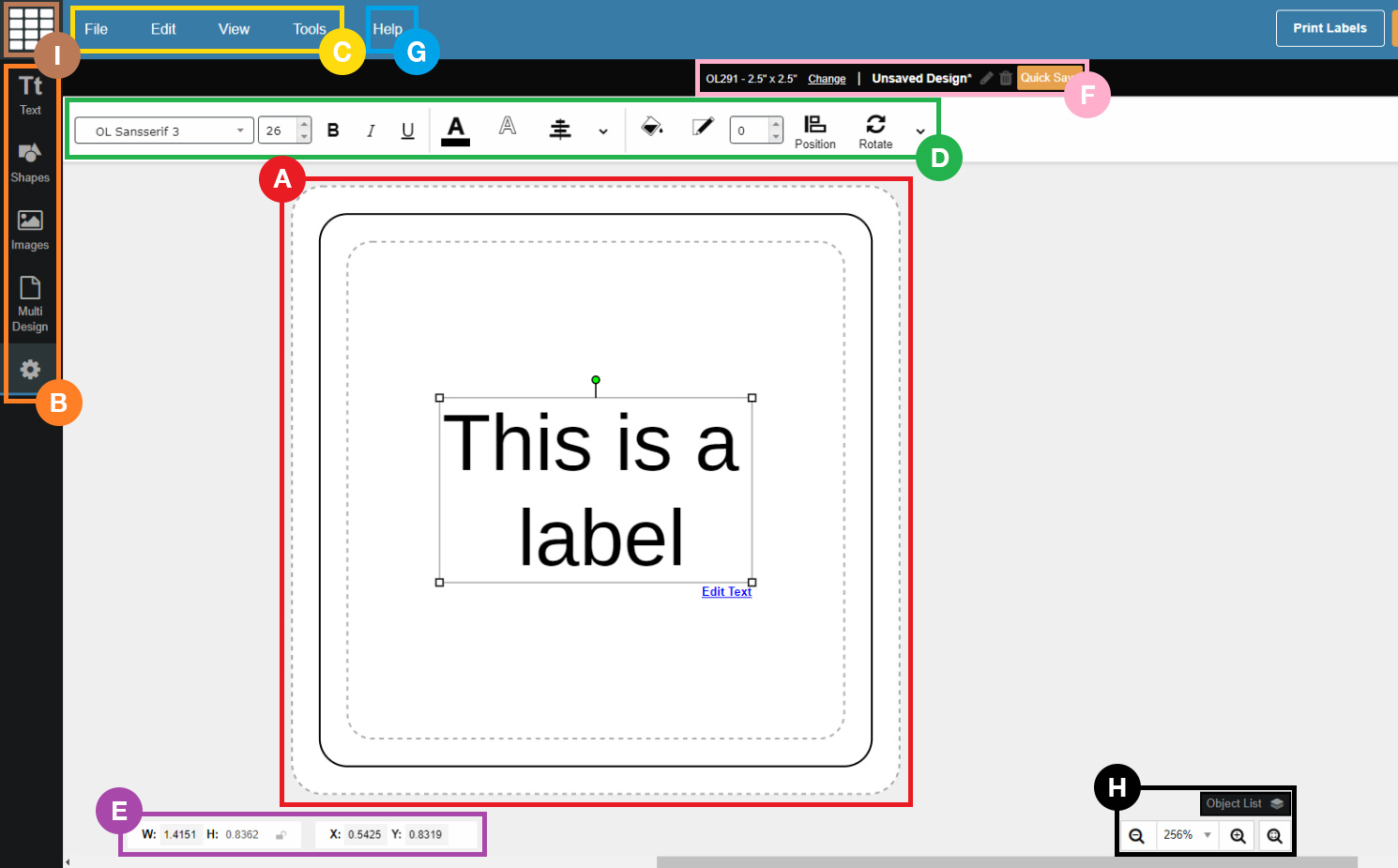
Label - where you create your design
Design Toolbar - how you add and edit text, shapes, and images and manage multiple designs per sheet
Menu Toolbar - where you access essential functions like save and print
Object Toolbar - how you manage selected objects
Position Controls - where you change the size and location of objects
File Information - where details about your file are displayed and you can save your design

Support Button - where you can find various forms of help

Zoom Tools and Object List - how you control your view in the design window and manage object layers

Home Icon - how you get back to the home screen
Saved Designs Screen
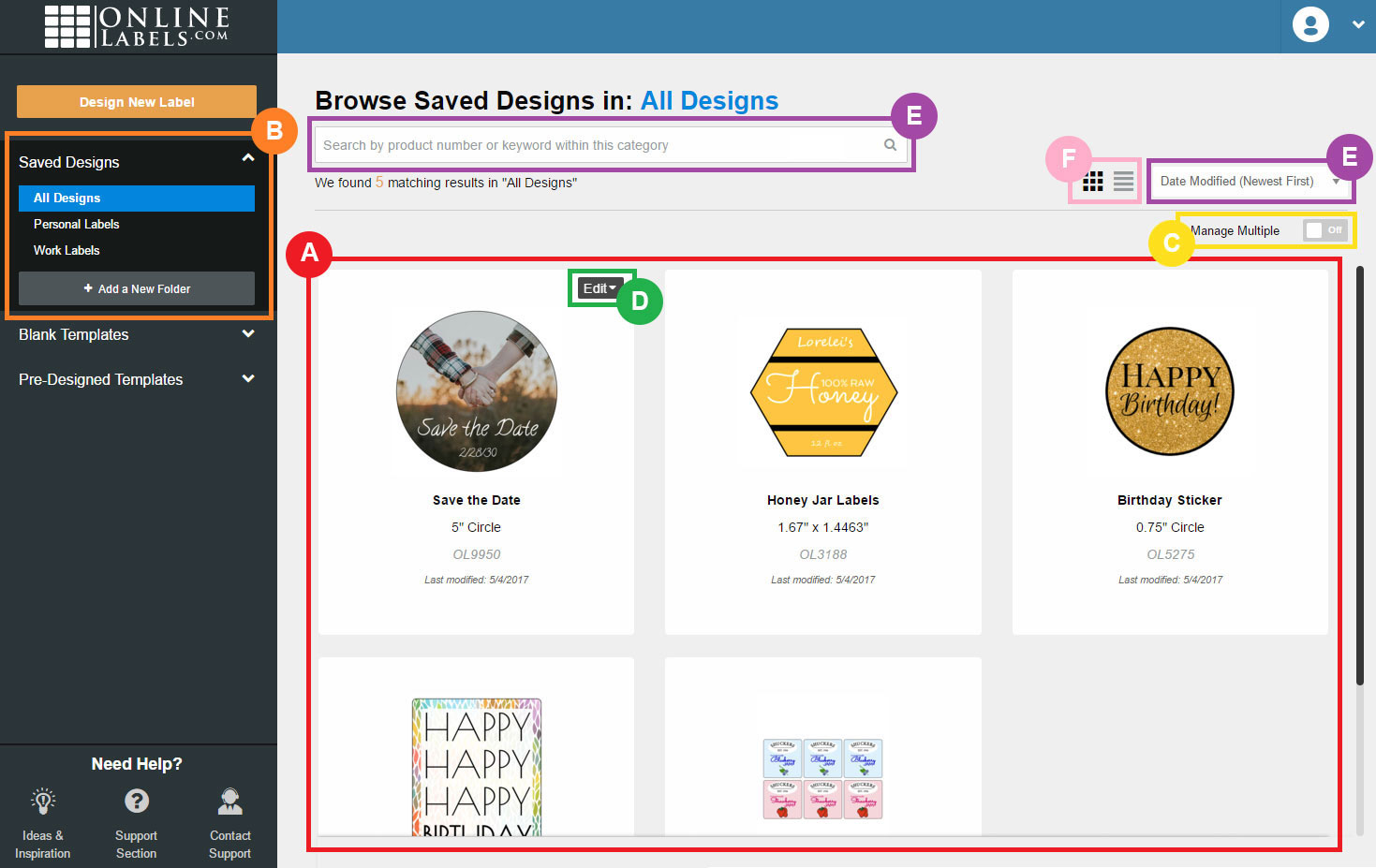
Saved Designs - where you can view your saved designs
Saved Design Folders - where folders created in your account are located
Manage Multiple Toggle - how you can move or delete various designs at once
Edit Menu - how you can move, rename, or delete a saved design
Sorting Dropdown - what you click to reorganize your saved designs
View Icons - where you can switch between thumbnail and list view
Launch Maestro Label Designer
For assistance learning or using Maestro Label Designer, please contact our support team by calling 1-888-575-2235.